Android Studio is a fairly new IDE (Integrated Development Environment) made available for free by Google to Android developers. Android Studio is based on IntelliJ IDEA, an IDE that also offers a good Android development environment. In this tutorial, I'll show you how to create a new Android project and take advantage of the features that Android Studio has to offer.
1. Project Setup
Before start exploring Android Studio, you'll first need to download and install it. Note that you need to have JDK 6 or higher installed. If you're on Windows, launch the .exefile and follow the steps of the setup wizard. If you're running OS X, mount the disk image by double-clicking it and drag Android Studio to your Applications folder.
If you've successfully completed the above steps, then your development environment should be set up correctly. You're now ready to create your first Android application using Android Studio. When you launch Android Studio for the first time, you should be presented with a welcome screen, offering you a number of choices to get you started/
In this tutorial, we're going to choose the New Project option. However, you can choose Import Project if you'd like to import a project from, for example, Eclipse, into Android Studio. Android Studio will convert the Eclipse project to an Android Studio project, adding the necessary configuration files for you.
If you select Open Project from the list of options, you can open projects created with either Android Studio or IntelliJ IDEA. By choosing Check out from Version Control, you can check out a copy of a project that's under version control. This is a great way to quickly get up to speed with an existing project.
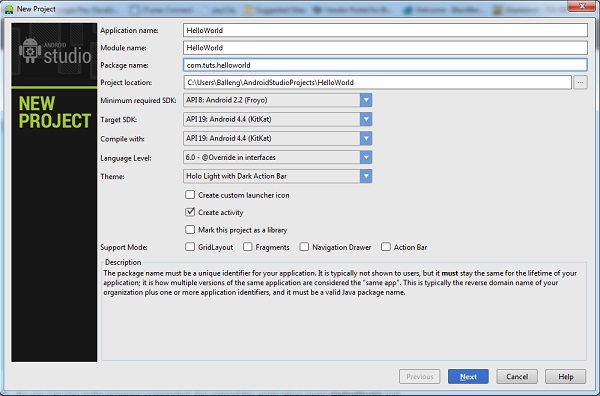
To get us started, choose New Project from the list of options. This will show you a list of options to configure your new project. In this tutorial, we're going to create a simple application to show you some of Android Studio's most important features. I'm sure you agree that there's no better name for our project than HelloWorld.
As you can see in the above screenshot, I've named my application HelloWorld and set the module name to HelloWorld. If you're unfamiliar with IntelliJ IDEA, you may be wondering what a module is. A module is a discrete unit of functionality that can be compiled, run, tested, and debugged independently. Modules contain source code, build scripts, and everything else required for their specific task.
When creating a new project, you can also set the package name of the project. By default, Android Studio sets the last element of the project's package name to the name of the module, but you can change it to whatever you want.
The other settings are the project's location on your machine, the minimum and target SDK, the SDK your project will be compiled with, and the project's theme. You can also tell Android Studio to create an Activity class and a custom launch icon for you, and whether the project supports GridLayout, Fragments, a Navigation Drawer, or an Action Bar.
We won't create a custom icon for this application so you can uncheck the checkbox labeled Create custom launch icon. Click Next to continue setting up your project.
Because we checked the checkbox Create activity in the previous step, you are asked to configure the Activity class Android Studio will create for you.
Since we'll be starting with a blank Activity class, you can click Next to proceed to the next step in the setup process in which you're asked to name the Activity class, the main layout, and the fragment layout. You can also set the navigation type, which we'll leave at None for this project. Take a look at the next screenshot to see what your settings should look like.
After clicking Finish, you'll be presented with Android Studio's user interface with the project explorer on the left and the workspace on the right. With your project set up in Android Studio, it's time to explore some of the key features of Android Studio.
2. Android Virtual Devices
An Android Virtual Device or AVD is an emulator configuration, allowing you to model an Android device. This makes running and testing applications on a wide range of devices much easier. With an Android Virtual Device, you can specify the hardware and software the Android Emulator needs to emulate.
The preferred way to create an Android Virtual Device is through the AVD Manager, which you can access in Android Studio by selecting Android > AVD Manager from the Tools menu.
If you're development environment is set up correctly, the Android Virtual Device Manager should look similar to the screenshot below.
To create a new AVD, click New... on the right, give the AVD a name, and configure the virtual device as shown below. Click OK to create your first AVD.
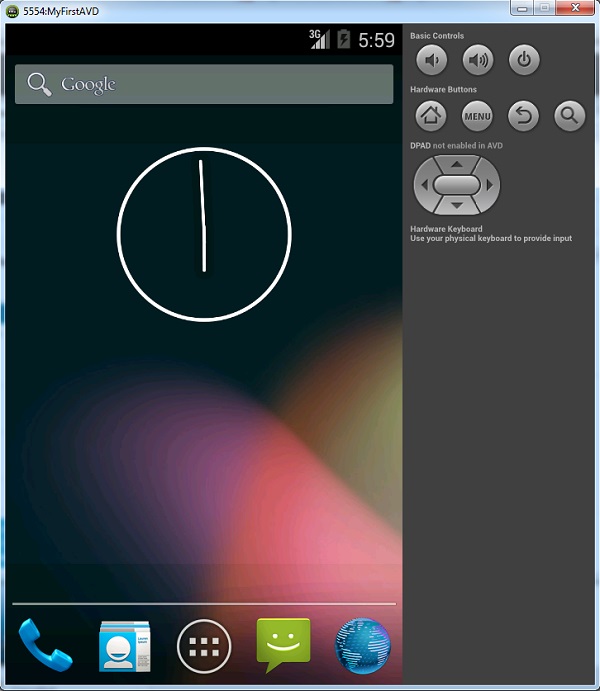
To use your newly created AVD, select it from the list in the AVD manager, and click Start... on the right. If your AVD is set up correctly, the Android Emulator should launch as shown in the screenshot below.
With the Android Emulator up and running, it's time to launch your application by selecting Run 'helloworld' from the Run menu. That's how easy it is to run an application in the Android Emulator.
3. Live Layout
Android Studio's live layout feature lets you preview your application's user interface without the need to run it on a device or the emulator. The live layout feature is a powerful tool that will literally save you hours. Viewing your application's user interface is much faster using live layouts.
To work with live layouts, double-click the XML layout file and select the Text tab at the bottom of the workspace. Select the Preview tab on the right of the workspace to preview the current layout. Any changes you make to the XML layout will be reflected in the preview on the right. Take a look at the screenshot below to get a better idea of this neat feature.
There are a number of other advantages of the live layout feature that are worth pointing out. You can, for example, create a variation of the XML layout you're currently working on by selecting an option from the first menu in the Preview pane. You can, for example, create separate views for portrait and landscape and Android Studio will create the necessary folders and files for you.
The second menu in the Preview pane lets you change the size of the device shown in the Preview pane. The third menu lets you change the orientation of the device shown in the Preview pane, which makes it easy to see how a layout looks in different orientations and using different themes.
The fourth menu in the Preview pane gives you easy access to the Activity or fragment in which the layout is used. The Preview pane also lets you change the language used in the live layout to make it easy to preview a layout in different languages. The rightmost menu lets you change the API version.
The Preview pane also includes controls to zoom in on the layout, refresh the Preview pane, or take a screenshot.
4. Templates
Android Studio provides developers with a number of templates to speed up development. These templates automatically create an Activity and the necessary XML files. You can use these templates to create a basic Android application, which you can then run on a device or in the emulator.
With Android Studio, you can create a template when you create a new Activity. Right-click on the package name in the project navigator on the left, select New from the menu, and choose Activity from the list of options. Android Studio then shows you a list of templates, such as Blank Activity, Fullscreen Activity, and Tabbed Activity.
You can also select Image Asset from the menu, which will launch a wizard that guides you through the creation process. Let me show you how to create a new Activitybased on the Login Activity template. Select the Login Activity option from the list ofActivity templates to fire up the wizard.
As you can see in the above screenshot, I've named the ActivityLoginActivity, set the Layout Name to activity_login, given the Activity a title of Sign In. The checkbox labeled Include Google+ sign in is checked by default. Uncheck it since we won't be using this feature in our example.
You can optionally set the Hierarchical Parent of the new Activity. This will let you navigate back if you tap the device's back button. We will leave this field empty. After clicking Finish, Android Studio creates the necessary files and folders for you. If all went well, you should see a new Activity and Layout in your project.
The next step is to set up the new Activity in the manifest file so it's used as the main Activity when the application launches. As you can see in manifest file below, the LoginActivity class has its own activity node.
To make your application launch the LoginActivity you created, remove the activity node for the LoginActivity class and replace com.tuts.HelloWorld.MainActivity with com.tuts.HelloWorld.LoginActivity. The result is that the application will now use the LoginActivity class as its main Activity.
When you build and run your application in the emulator, you should see a screen similar to the one shown below. This means that we've successfully replaced the blankActivity class with the newly created LoginActivity class.
5. Lint Tools
Testing your code is one thing, but it's equally important to apply best practices when writing code. This will improve performance and the overall stability of your application. It's also much easier to maintain a properly structured project.
Android Studio's includes Android Lint, a static analyzer that analyzes your project's source code. It can detect potential bugs and other problems in your code that are the compiler may overlook.
The below screenshot, for example, tells us that the LinearLayout in this layout is of no use. The nice thing about Android Lint is that it gives you a reason for the warning or error, which makes it easier to fix or resolve.
It's good practice to run Android Studio's lint tool from time to time to check your project for potential problems. The lint tool will even tell you if you have duplicate images or translations.
To run the lint tool, select Inspect Code… from the Analyze menu in Android Studio to start the process. When Android Studio has finished inspect your project, it will present you with the results at the bottom of the window. Note that in addition to Android Lint, Android Studio performs a number of other checks as well. Simply double-click an issue to navigate to the file in which the problem is located.
6. Rich Layout Editor
Android Studio has a rich layout editor in which you can drag and drop user interface components. You can also preview layouts on multiple screen configurations as we saw earlier in this tutorial.
The rich layout editor is very straightforward to use. We first need a layout to work with. Navigate to the layout folder in your project's res folder, right-click the layout folder, and select New> Layout resource file from the menu that appears.
Give the new layout a name, set its root element, and click OK. Android Studio will automatically open the layout in the editor on the right.
At the bottom of the editor, you should see two tabs, Design and Text. Clicking theText tab brings up the editor, allowing you to make changes to the currently selected layout.
Clicking the Design tab brings up another editor that shows you a preview of the layout. To add a widget to the layout, drag it from the list of widgets on the left to the layout on the right. It's that simple.
Today we are excited to introduce Android Studio 1.0.
Android Studio is the official Integrated Development Environment (IDE)
from the Android team. It is built on the popular IntelliJ IDEA
(Community Edition) Java IDE.
We first released a preview of Android Studio at I/O last year. We
value the on-going feedback from you, thanks! We are making Android
Studio 1.0 available for download as a stable release on the Android Developer site.
Download Android Studio
If you are currently developing for Android or thinking about getting started, now is the time to download Android Studio 1.0
(or upgrade if you are using an earlier version). Similar to the Chrome
release channels, Android Studio will continue to receive updates on
four different release channels: Stable, Beta, Dev, and Canary. Canary
builds are at the bleeding edge of development, while the stable release
is fully tested. With this range of release channels you can choose how
quickly you want to get the latest features for Android Studio.
Android Studio features
With the release of Android Studio, you have access to a new set of
features to enable your development workflow. Some of the key features
of Android Studio are listed below, but make sure to check out the Android Studio page for a full feature overview.
Startup experience
First-run setup wizard — The getting
started experience now installs the right Android SDK, sets up your
development environment settings, and creates an optimized emulator for
testing your app. Plus, we include a set of code templates to help you
get started.
Sample Importing & templates — Android Studio includes wizards that enable you to start with new project templates or import Google code samples.
Code and resource editing, user interface design
Code Editing — Android Studio takes advantage of all the
intelligent code editing capabilities of IntelliJ IDEA such as advanced
code completion, refactoring, and code analysis.
Internationalization string editing — Manage string translations of your app in Android Studio.
User interface design — Edit and preview your Android Layouts across multiple screen sizes, languages, and even API versions.
Performance analysis
Memory monitor — View the memory usage of your app over time to help find ways to improve the performance of your app.
Unified build system
Android Studio uses a Gradle-based build system
that provides a lot of flexibility and extensibility, as well as the
ability to build from within and outside of the IDE. This unified build
system decouples the build from Studio itself, meaning that Studio
updates never impact the output of your build.
Some of the key features of the build systems are: build variant support
to better handle different build types (debug vs. release), or
different versions of the same app (paid vs. free), multi-apks handling
through splits, multi-dex support, and dependency management for 3rd
party libraries.
Instant access to Google Cloud Services
Android Studio even enables an easy way to add Google Cloud Backends
& Endpoints to your app, as well as Google Cloud Messaging (find out more).
Time to migrate & update
If you are an Eclipse user, check out our migration steps or you can just import your projects right into Android Studio with the import wizard, shown below:
If you were using one of the early versions of Android Studio, you
should also upgrade to version 1.0 since we have added a host of new
features and have addressed many bugs.
We have also released version 1.0 of the Gradle plugin with a file
format that is now stable. The communication between Android Studio and
the Gradle plugin is now stable, so updating one will not require
updating the other. Check the technical release notes for additional tips for updating your previous Android Studio projects.